Create a shutdown icon
To create a shutdown icon on your desktop do the following,
1. Right click anywhere on your desktop and select New > Shortcut
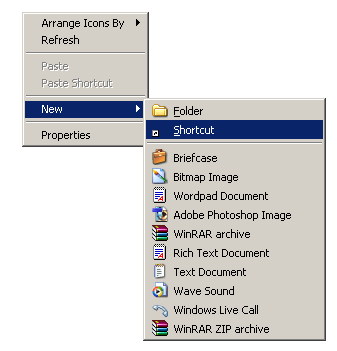
2. In the new window that opens Copy paste this command,
C:\Windows\System32\shutdown.exe -s -f -t 00

3. Click Next and Name it Shutdown as shown below
Name it Shutdown
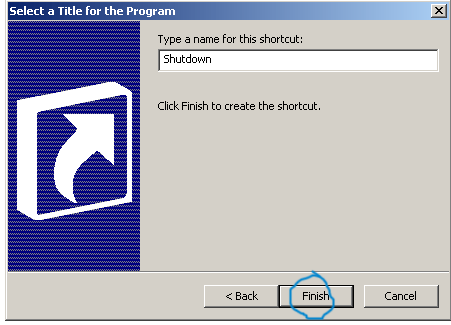
4. You will get an icon as shown below,
Shutdown-icon

Clicking this Icon will Shutdown your Windows Instantly. If you don’t like the Icon Image, you can customize it too. Do the following
1.Right Click on the shutdown Icon and select Properties a window will open as shown below,
Customize-Shutdown-Icon
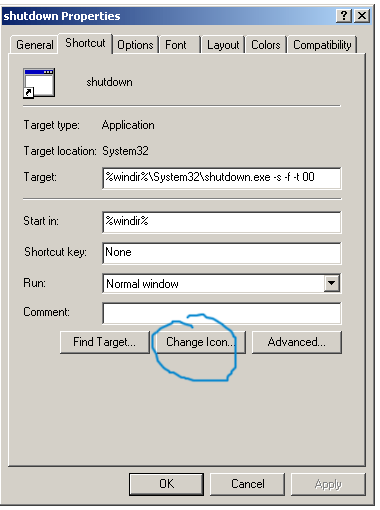
2. Click Change Icon button and choose an Icon from those available,
choose-shutdown-icon

You can also download an icon of your choice and save it to your local drive. To use an icon of your choice simply click the browse button and specify the path where you have saved the icon.
3. Your new Shutdown Icon will look like this,

Create A Restart Icon
Follow exactly all the steps discussed above to create a Restart Icon. You only need to add a different command for your Restart Icon. Here is the code for your Restart Icon,
C:\Windows\System32\shutdown.exe -r -f -t 00
After selecting an icon image you will get this,


No comments:
Post a Comment